React Native Animations — Animated.Value
In the previous article , we explored Animated API in React Native.
React Native Animations — Animated.Value
React Native’s Animated.Value with a Real-World Example
In the previous article, we explored Animated API in React Native.
Now, let’s dive into the Animated.Value and understand how to use it to build powerful and performant animations.
➡️ ⬅️
Animations bring life to your Applications. transforming static interfaces into dynamic experiences.
Animations make apps more fun and interactive.
Animated.Value offers powerful tools for creating smooth and dynamic effects.
Methods of Animated.Value
- setValue()
- setOffset()
- flattenOffset()
- extractOffset()
- addListener()
- removeListener()
- removeAllListeners()
- stopAnimation()
- resetAnimation()
- interpolate()
- animate()
Let’s understand all these methods one by one with an Real-World example.
setValue()
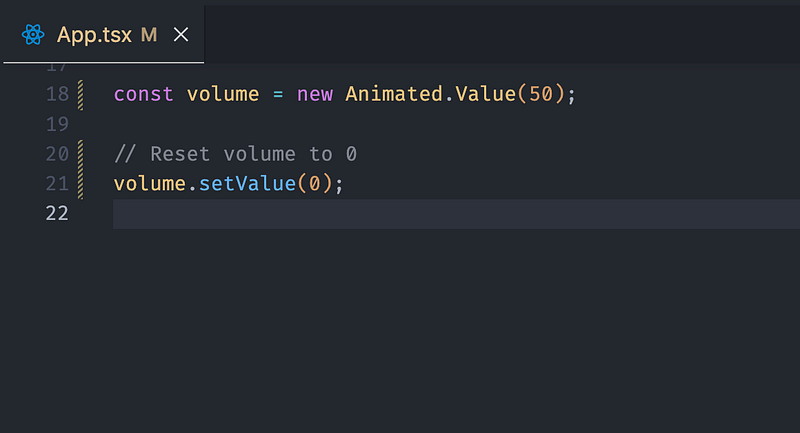
Sets the animation value to a specific number.
Think of it as resetting or manually updating the current value.
Example:
Imagine a volume slider in a music app.
If the volume is initially at 50 and you want to reset it to 0 instantly when the user presses Mute:
setOffset()
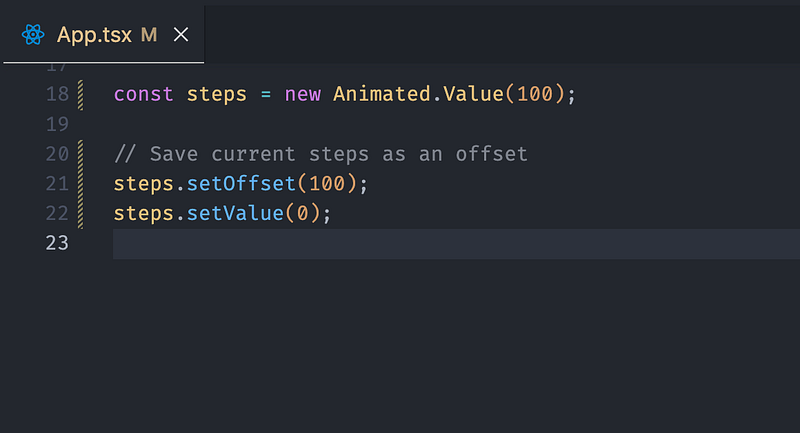
Adds an offset to the animation value.
Useful when you want to start your animation from a shifted position.
Example:
You’re building a pedometer app.
The user has walked 100 steps (current value), but they want to reset the steps to zero without losing the data.
You store the current steps as an offset.
flattenOffset()
Combines the offset into the animation value and resets the offset to zero.
Use it after adding an offset, especially in drag-and-drop scenarios.
Example:
Continuing the pedometer app, after adding new steps, you want to combine the offset into the current value for easier calculations.
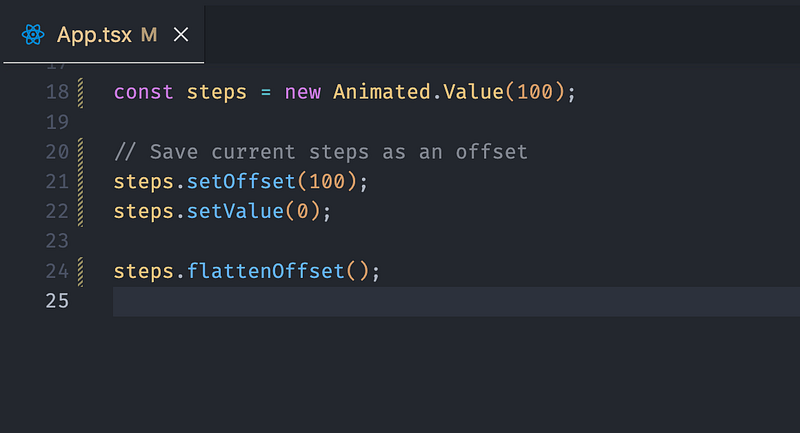
Now, stepsholds the total steps (current + offset), and the offset is cleared.
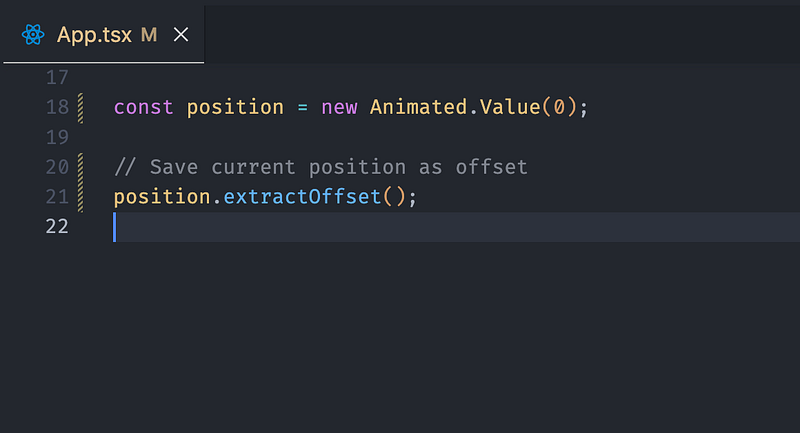
extractOffset()
Locks the current animation value as the new offset and resets the value to zero.
Ideal when you want to set the animation’s current position as the new starting point.
Example:
A photo-editing app where a user drags an image to reposition it.
If you want to lock the current position as the offset so the next drag starts from there:
addListener()
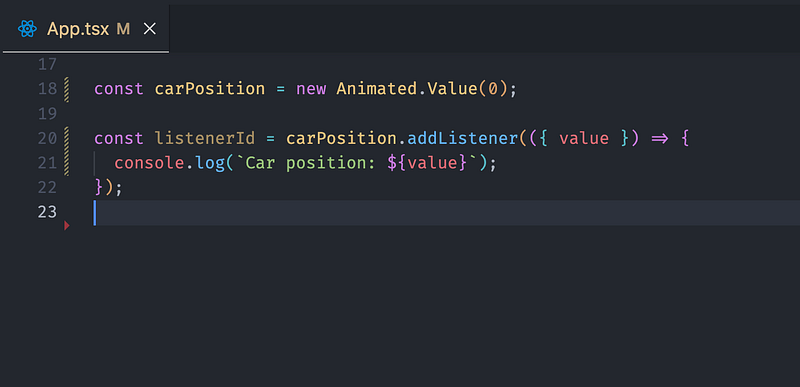
Tracks the animation value in real-time and lets you respond to changes.
Example:
In a taxi app, you show the car’s live position on the map.
When the position changes, you update the UI:
removeListener()
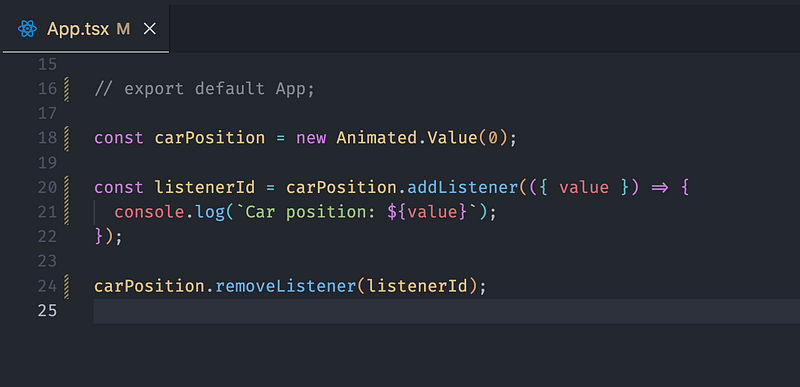
Stops tracking a specific listener.
Use this to clean up when a particular listener is no longer needed.
Example:
When the user exits the taxi app, stop tracking the car’s position to save resources.
removeAllListeners()
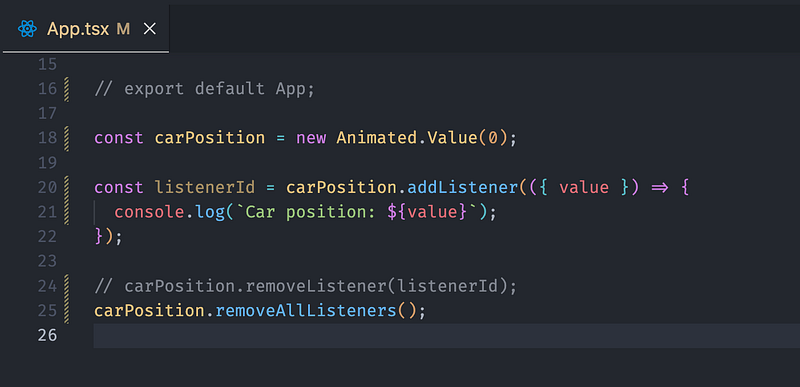
Stops tracking all listeners for the animation.
Essential for avoiding memory leaks.
Example:
When the user logs out of the app, clear all event listeners to avoid memory leaks.
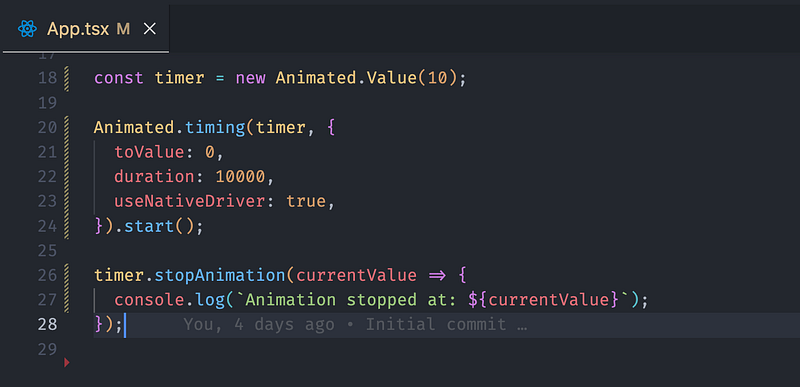
stopAnimation()
Stops the animation immediately.
Use this when you need to pause or interrupt an ongoing animation.
Example:
In a timer app, if the user stops the countdown, halt the animation instantly:
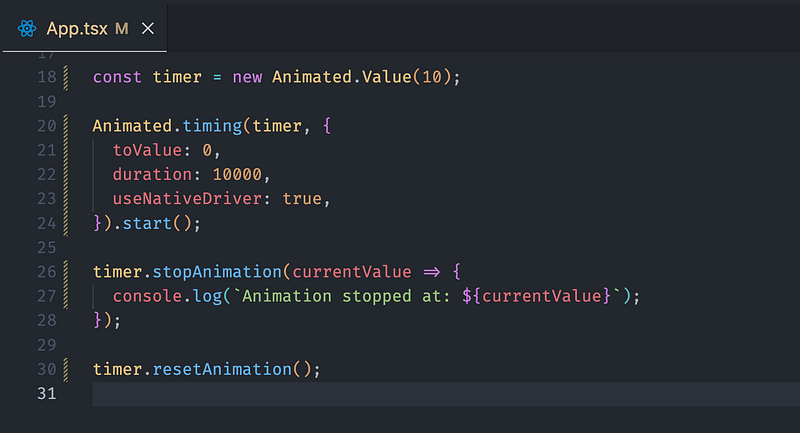
resetAnimation()
Resets the animation to its starting value without affecting the offset.
Handy for restarting an animation from scratch.
Example:
If the user pauses the timer and then resumes it, you reset the animation to the starting point:
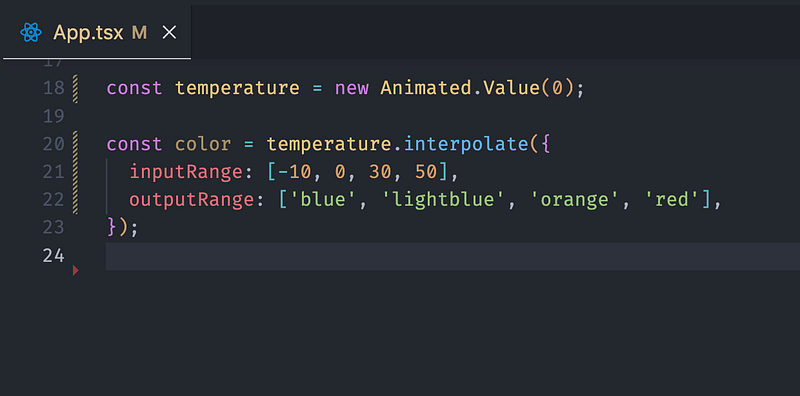
interpolate()
Maps the animation value to another range or property.
ex. Turning a position value into a color or opacity change.
Example:
In a weather app, map temperature values to colors for a thermometer UI:
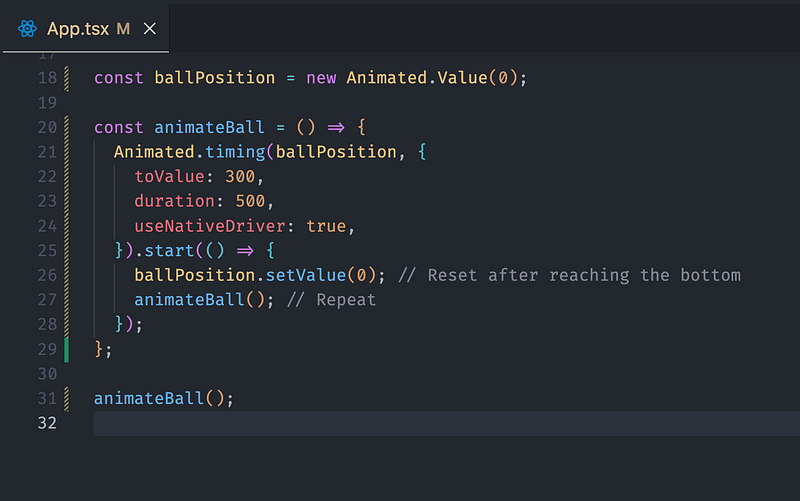
animate()
Runs the animation using one of the animation methods like timing or spring.
This is the main method to make things move, bounce, fade, or transform.
Example: To simulate a bouncing ball in a game:
If you found this article helpful, give it a clap! 👏🏻
If you have any questions or suggestions, feel free to drop a comment below. I’d love to hear from you!
React Native Animations List by Alkesh Jethava
Most Loved !!
For more updates: subscribe to this medium account.
Thank you for reading 😊