React Native Animations — Animated API
In the previous article , we explored the basics and prerequisites of animations in React Native.
React Native Animations — Animated API
In the previous article, we explored the basics and prerequisites of animations in React Native.
Now, let’s dive into the Animated API and understand how to use it to create smooth and engaging animations.
➡️ ⬅️
The Animated API is designed to help you create smooth and attractive animations.
It focuses on establishing a clear relationship between the triggers and behavior of the animation.
The beauty of this API is in its simplicity — it allows you to control animations declaratively, customize their behavior, and easily start or stop them when needed.
There are two primary types of animated values you’ll use:
- Animated.Value()
- Animated.ValueXY()
We will explore these types in more detail in future articles.
Types of Animations
React Native provides three animation types:
- Animated.decay()
- Animated.spring()
- Animated.timing()
Each animation type has its unique behavior, affecting how elements move from the starting point to the endpoint. The movement could be smooth, accelerate, decelerate, or even bounce.
In most cases, you’ll likely use the Animated.timing() function.
This function offers a default easeInOut style, meaning the animation starts slowly, accelerates in the middle, and slows down toward the end, making the movement feel natural.
Controlling Animations
To stop an animation, simply call the stop() function.
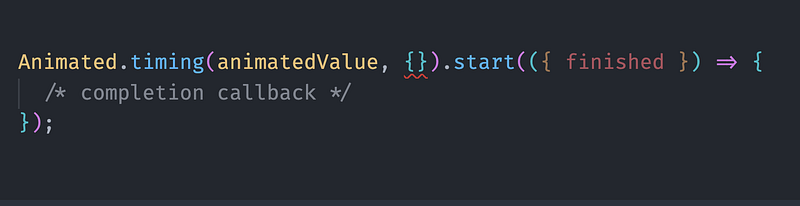
The start() function accepts a completion callback, which provides an object with a finished property.
There are two cases:
- When the animation completes naturally, the callback will invoke with {finished: true}.
- When you call stop(), the callback will invoke with {finished: false}.
Building Our First Animation
Now that we’ve covered the theory, let’s create a simple animation — a zoom in/zoom out effect on an image.
As part of my workflow, I like to organize components into four separate files:
- index.jsx: Contains the structure of the component.
- styles.ts: Contains the styling.
- types.ts: Contains types and interfaces (though we won’t use this here).
- useComponent.ts: Contains the component logic.
For this example, we’ll create a ZoomInOutAnimation component.
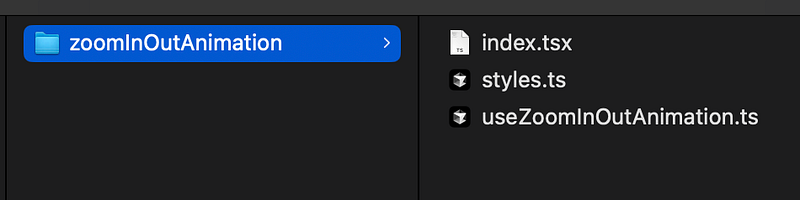
The component will reside in a folder named ZoomInOutAnimation, which contains the following files:
- index.tsx
- styles.ts
- useZoomInOutAnimation.ts (No types needed in this case)
Step-by-Step Code Walkthrough
Let’s start with the index.tsx file, where we’ll animate an image.
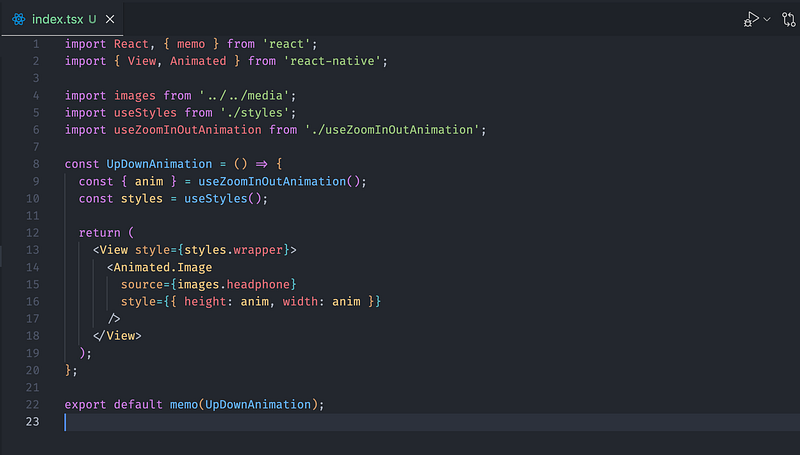
In this file, I used Animated.Image to animate the image.
The height and width of the image are controlled by the anim value.
So that I only change the height and width of the Image
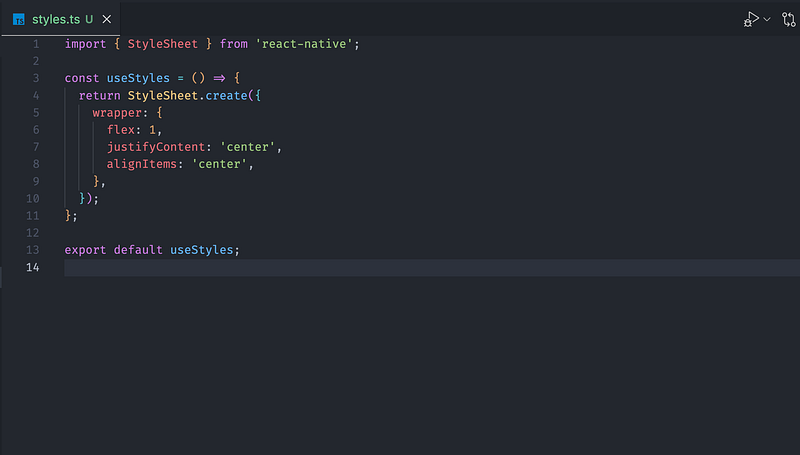
In styles.ts file where we center the image:
Finally, in the useZoomInOutAnimation.ts file, we define the animation logic:
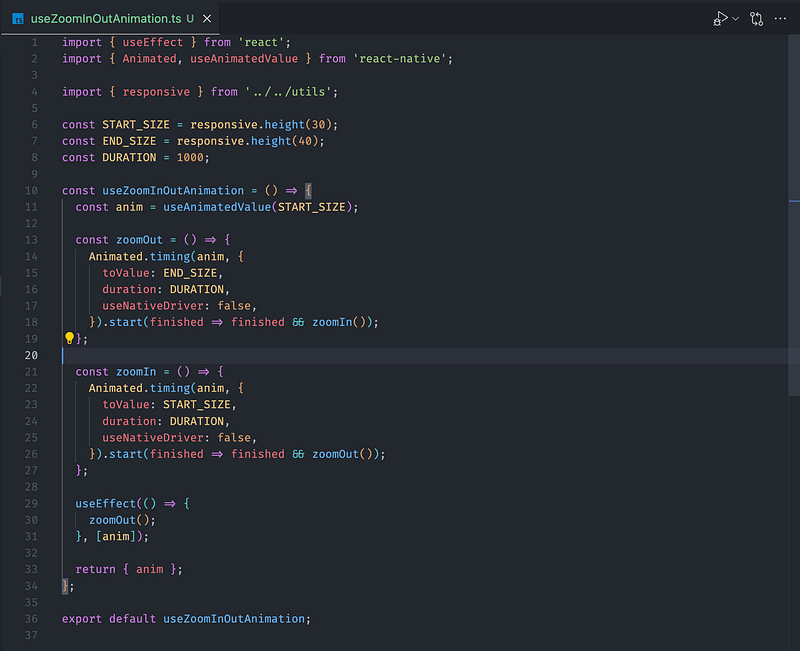
Here’s the actual magic,
Let’s go through the logic step by step:
- useEffect is used to trigger the animation when the component mounts.
- Animated.Value is initialized with the starting size of the image.
- We define two functions: zoomIn and zoomOut, which adjust the size of the image.
- The animation is triggered using Animated.timing() with the desired parameters:
- toValue specifies the target size.
- duration defines how long the animation takes.
- useNativeDriver is set to false because height and width aren’t supported by the native driver.
The animation alternates between zooming in and zooming out in a continuous loop.
Animation in Action
Here’s a preview of the animation in action:

And there you have it!
We’ve successfully created our first animation in React Native using the Animated API.
You can find the full code for this component on my GitHub repo.
If you found this article helpful, give it a clap! 👏🏻
If you have any questions or suggestions, feel free to drop a comment below.
I’d love to hear from you!
React Native Animations List by Alkesh Jethava
Most Loved !!
For more updates: subscribe to this medium account.
Thank you for reading 😊