🛠️ Automate Your React Native Workflow with a Custom Yarn Command
Create React Native components with a single command and boost your dev productivity 🚀
🛠️ Automate Your React Native Workflow with a Custom Yarn Command
Create React Native components with a single command and boost your dev productivity 🚀
🔥 Read for free 👉
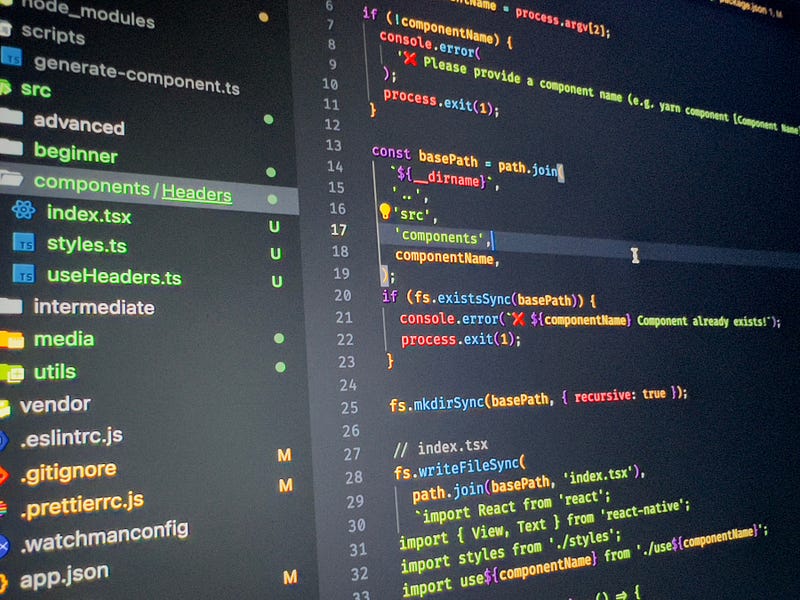
🤔 The Problem
As a React Native developer, one of the most repetitive tasks we all face is setting up component folders:
index.tsxfor the UIstyles.tsfor stylesuseComponent.tsfor custom logic
You know the drill. Every time, we write the same boilerplate — wasting time and breaking focus.
Wouldn’t it be amazing to just run something like:
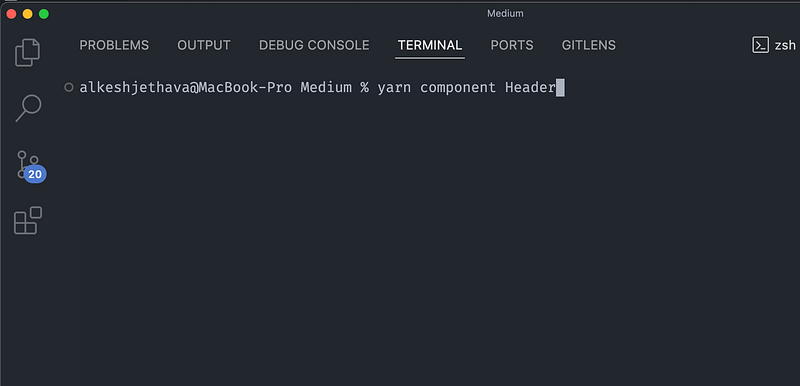
…and instantly have this?
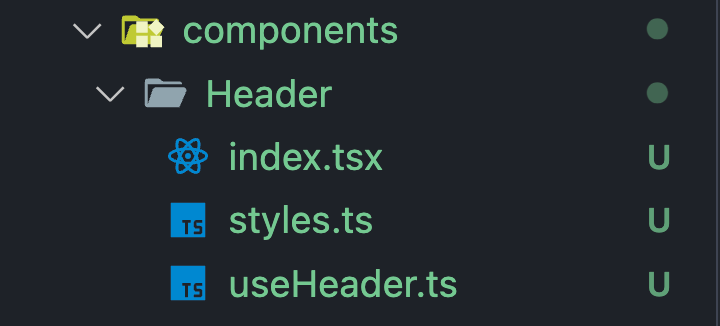
Let’s make that dream real. 🔥
🎯 What You’ll Build
A simple, reusable CLI tool using a Yarn script that:
- Takes a component name (
Header,LoginForm, etc.) - Creates a folder under
/components/ - Adds
index.tsx,styles.ts, anduseComponent.tsfiles - Uses standard React Native + TypeScript boilerplate
All this with just one command.
⚙️ Step 1: Create the Script
At the root of your project, create a folder — scripts
and create a typescript file
touch generate-component.jsNow paste this code:
const fs = require('fs');
const path = require('path');
const componentName = process.argv[2];
if (!componentName) {
console.error(
'❌ Please provide a component name (e.g. yarn component [Component Name]])',
);
process.exit(1);
}
const basePath = path.join(
`${__dirname}`,
'..',
'src',
'components',
componentName,
);
if (fs.existsSync(basePath)) {
console.error(`❌ ${componentName} Component already exists!`);
process.exit(1);
}
fs.mkdirSync(basePath, { recursive: true });
// index.tsx
fs.writeFileSync(
path.join(basePath, 'index.tsx'),
`import React from 'react';
import { View, Text } from 'react-native';
import styles from './styles';
import use${componentName} from './use${componentName}';
const ${componentName} = () => {
const {} = use${componentName}();
return (
<View style={styles.container}>
<Text>${componentName} Component</Text>
</View>
);
};
export default ${componentName};
`,
);
// styles.ts
fs.writeFileSync(
path.join(basePath, 'styles.ts'),
`import { StyleSheet } from 'react-native';
export default StyleSheet.create({
container: {
padding: 16,
},
});
`,
);
// useComponent.ts
fs.writeFileSync(
path.join(basePath, `use${componentName}.ts`),
`const use${componentName} = () => {
return {};
};
export default use${componentName};`,
);
console.log(
`✅ Component ${componentName} created in components ${componentName}`,
);🧩 Step 2: Add a Yarn Script
Open your package.json and add this under scripts:
"scripts": {
  "component": "node scripts/generate-component.ts"
}
This lets you run yarn component ComponentName, where component is a custom alias for the component generator.
🧪 Step 3: Use It!
yarn component HeadersBoom 💥!
Your src/components/Header/ folder will be created with all the essential files.
💡 Why This Is Awesome
- 🧠 Saves mental energy
- ⏱️ Boosts speed
- 🧹 Keeps folder structure consistent
- 🧰 Easy to extend for screens, Redux modules, tests, etc.
This is the kind of small productivity booster that pays off big over time.
Instead of creating folders manually 100+ times across a project, automate it once and focus your energy on building actual features.
Let me know in the comments if you want a create-screen version with navigation next. 💬
📌 Follow Me for More
Did you find this helpful? Give a Clap and Share it with your friends!
For more updates: subscribe to my medium account.
Thank you for reading 😊